Accept in three steps
Pair the Companion with the Windows desktop agent once. After that, the same secure connection is ready whenever you queue.
-
1
Start matchmaking in Dota 2
Keep Dota 2 and the paired ReAccept desktop agent running on your PC.
-
2
Leave your PC
Go make coffee, grab food, or step away while the search continues.
-
3
Accept the match from your phone
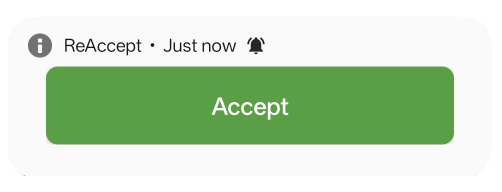
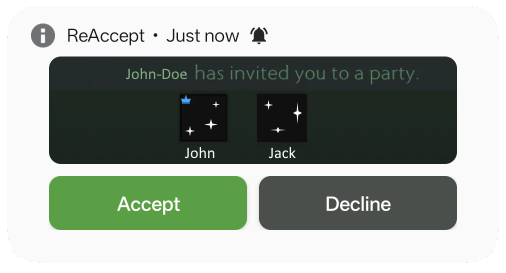
Tap Accept in the Android notification, the app, or your linked Telegram chat.
What must stay running?
Your Windows PC must remain powered on, connected to the internet, and running the ReAccept desktop agent. Dota 2 must remain open while matchmaking continues.
The desktop agent detects the ready check locally. It does not read game memory or inject code into Dota 2. When you tap Accept, it performs the ordinary input on your own paired PC.
Android or Telegram
The Android app provides push notifications, an in-app match dialog, subscription management, and remote actions. If you prefer not to install the app, link Telegram from the desktop agent and use the Accept button in the bot message.
Match notifications remain free. ReAccept includes three lifetime remote accepts before unlimited remote accepts require a subscription.
Set up ReAccept
Install the Windows agent, pair Android or Telegram, and run one test before leaving your next queue.