How it works
-
1
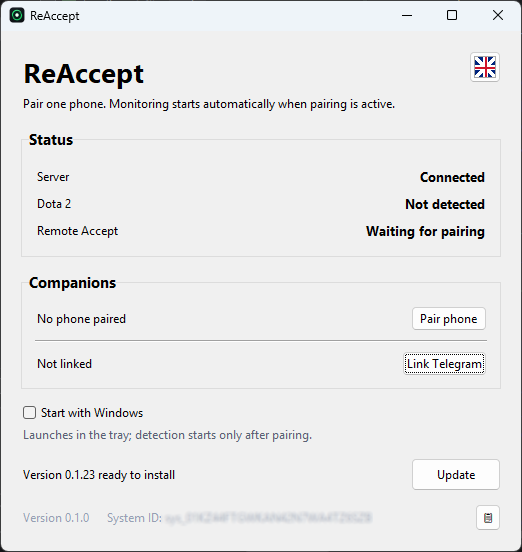
Install the desktop agent
Stays ready while you queue — no border, no overlay, no interference with DX11 or Vulkan.
-
2
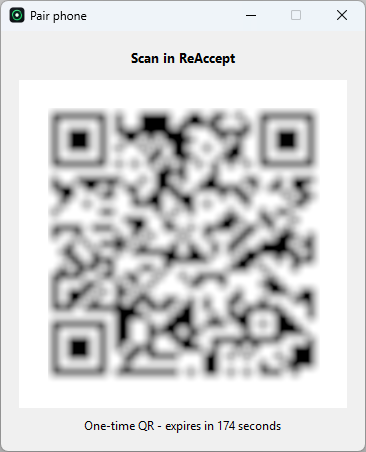
Pair your Companion
Scan a QR code from the ReAccept app once, or open the Telegram link shown in the same spot on the desktop.
-
3
Get notified
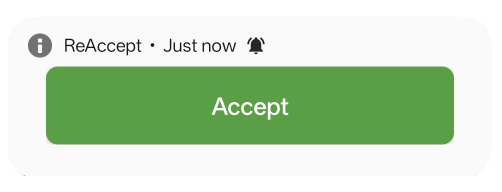
A ready check appears — your phone buzzes with a push notification immediately.
-
4
Accept from anywhere
Tap Accept in the notification or the app. ReAccept securely relays that action to the desktop app on your own PC, which completes the ready check.
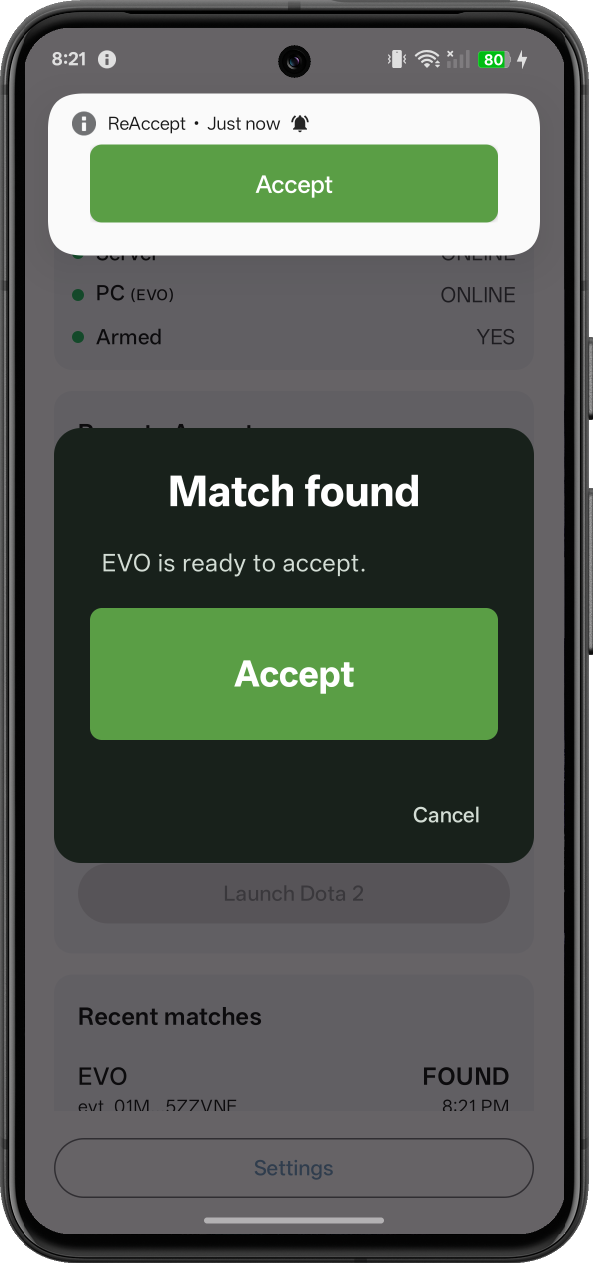
Tapping Cancel in the app only dismisses that notification on your phone — it does not decline or cancel the actual Dota 2 match. If you don't act, the ready check just runs its normal course in-game.
The same flow also covers party invites and launching Dota 2 itself — not just ready checks.
Need the shortest setup overview? Read the guide to accepting a Dota 2 match from your phone.
Make sure it works in the background
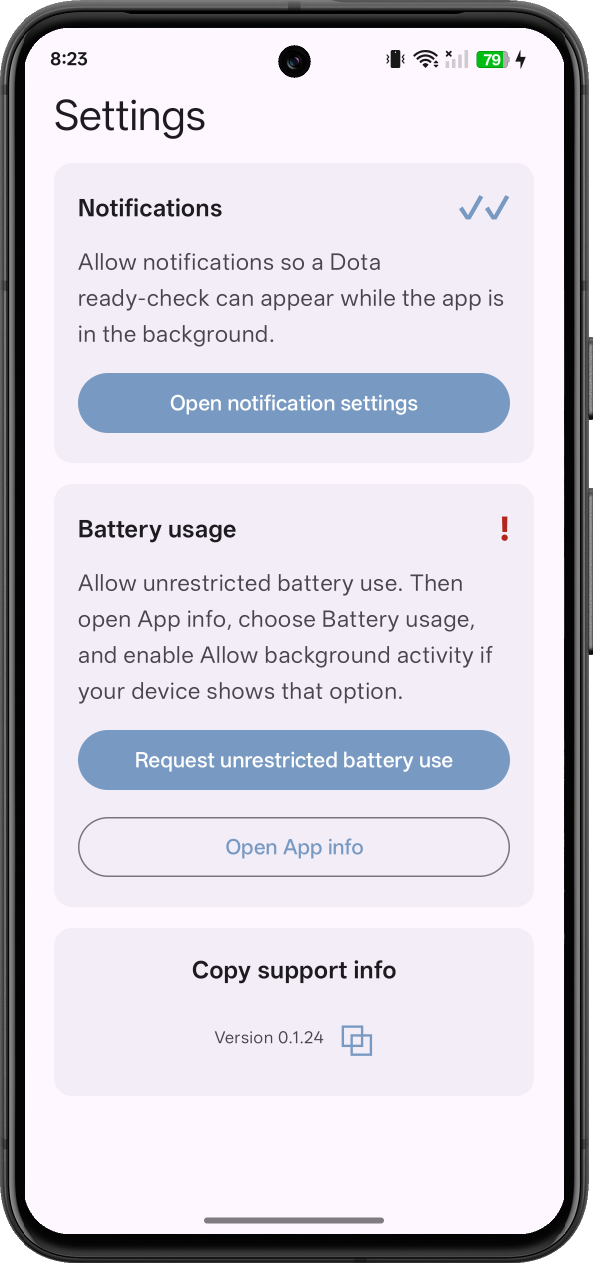
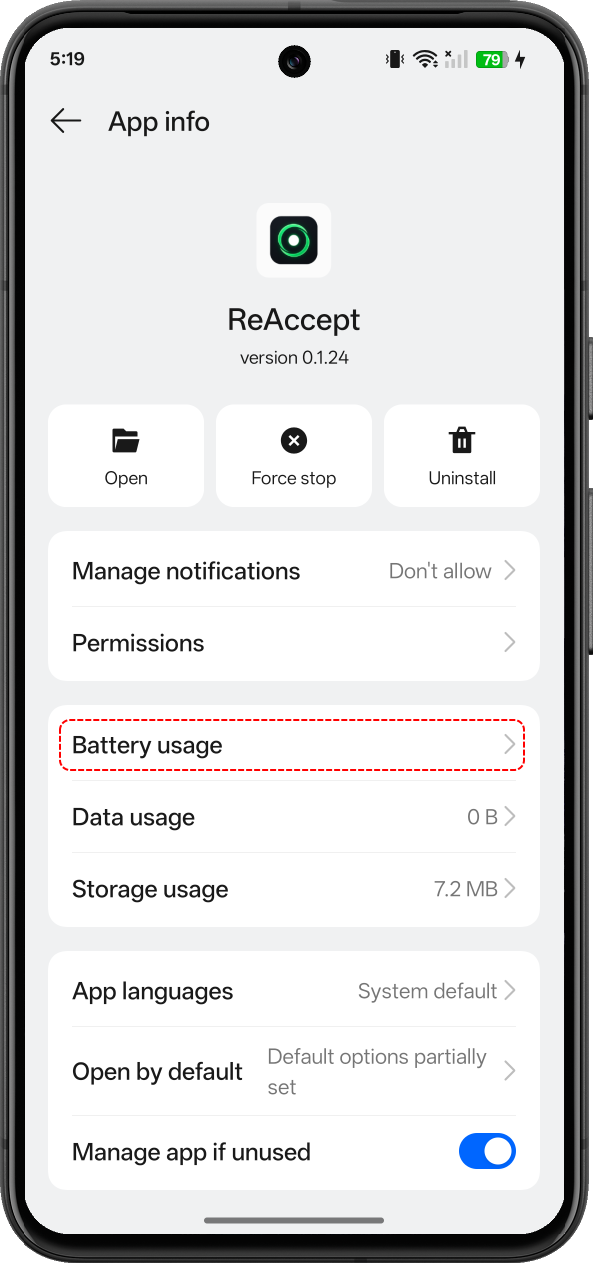
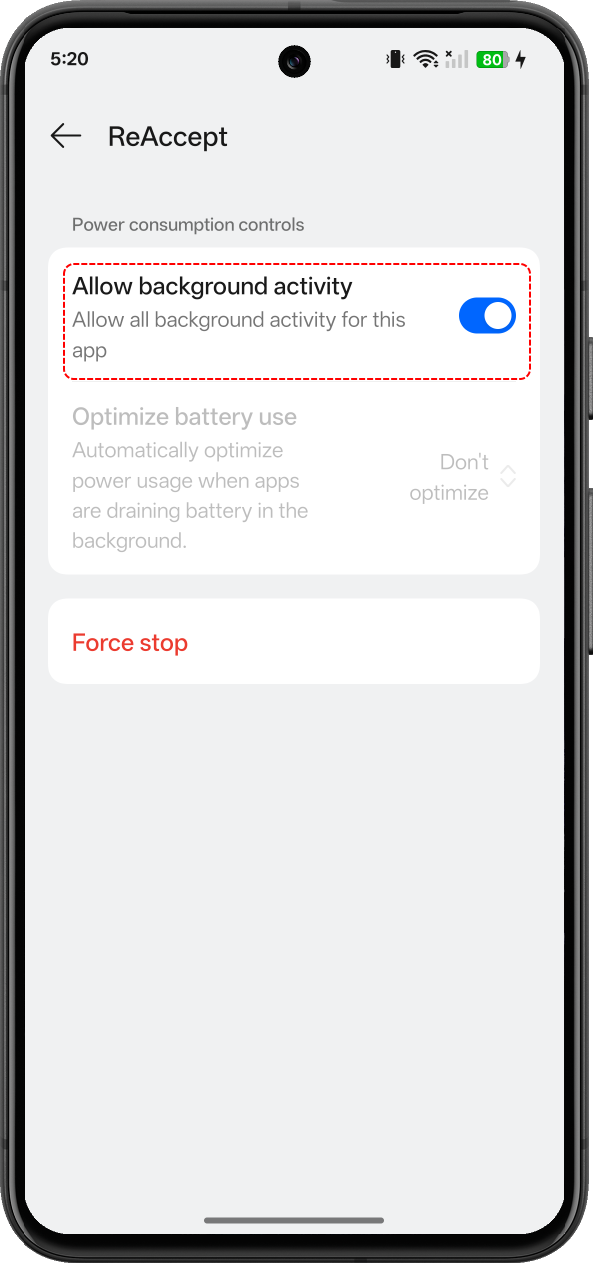
Android aggressively kills background apps by default. For notifications to arrive reliably, exempt ReAccept from battery optimization and allow background activity in your phone's settings. This takes 30 seconds and is required, not optional.
Features
Works with your setup
DX11 and Vulkan, borderless and windowed, any resolution or display scale.
Locale-independent detection
Recognizes the Accept button regardless of your Dota 2 client language.
No visible capture
No capture border or overlay while you're actually playing.
Just a notification, or a real accept
Notifications are always on. Your first 3 remote accepts are free — after that, subscribe to keep accepting remotely.
Party invites, too
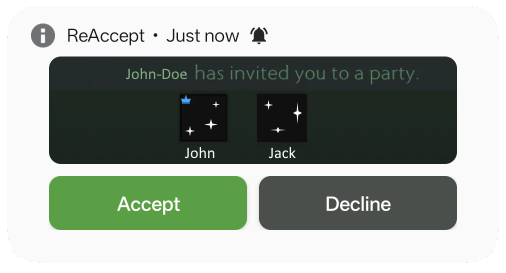
Get pinged the moment a friend invites you to a party, with a preview of who's in it, and accept or decline right from your Companion.
Launch Dota 2 remotely
Start Dota 2 on your PC from your phone before you're even at your desk.
Or just use Telegram
Skip installing the Android app — link Telegram once and get the same accept, decline, and launch actions as buttons right in the chat.
Privacy & trust
Designed for your own devices. ReAccept only controls the desktop app you explicitly pair using a one-time QR code or Telegram link — it does not provide general remote desktop access, does not read files on your PC, and does not read game memory or perform gameplay automation.
It only looks at your own Dota 2 window to detect ready checks and party invites — never your full desktop. Ready-check pixels stay on the PC. For party invites, a small cropped preview of the invite dialog (which can include the inviting player's name and avatar) is relayed to your phone or Telegram and automatically deleted after 40 days. ReAccept does not read game memory, collect general gameplay telemetry, sell personal data, display third-party ads, or use data for personalized advertising or cross-service tracking. Service identifiers, event records, stability diagnostics, and optional purchase records are described in the Privacy Policy.
FAQ
Will this get me banned?
ReAccept doesn't read game state, doesn't automate gameplay, and doesn't touch memory or the game process. It only detects the ready-check or party-invite screen from a screenshot and sends a single click — the same thing you'd do yourself. We can't make guarantees about anti-cheat policy, but this is not gameplay automation.
Does it work if my Dota client isn't in English?
Yes. Ready-check detection is locale-independent and doesn't rely on reading any text.
What happens if I'm already at my PC?
Nothing changes — ReAccept doesn't take over if you're present. It only clicks when the remote accept command actually needs to run.
Will it work if my phone is locked or the app is closed?
Yes, as long as background activity is allowed (see the setup step above). The notification arrives from the background, and accepting from it doesn't require opening the app.
Does dismissing the notification or tapping Cancel decline the match?
No. Swiping away the notification and tapping Cancel in the app only dismiss that notification on your phone — they don't send anything to Dota 2 or cancel the actual ready check. The match itself is unaffected either way.
What's free vs. paid?
Notifications are always free, for every match. You also get 3 remote accepts free, total. After that, you'll still get the notification, but accepting remotely requires a subscription.
Do I need the Android app, or can I use Telegram instead?
Either works. Link your Telegram account once from the desktop app and you'll get the same match, party-invite, and remote-launch actions as buttons right in the chat with the bot — no separate app install required. You can also use both at the same time.
Can I unpair my phone or Telegram later?
Yes. Pairing is per-device — scanning the QR again or re-linking Telegram doesn't affect any other device — and can be revoked at any time from the desktop app.
Does this only work for ready checks?
No — the same remote notification-and-action flow also covers party invites (accept or decline from your phone) and launching Dota 2 itself, not just accepting a found match.
Download
Android
Scan the QR code or install ReAccept from Google Play.
Install ReAccept from Google Play.
 Get it on Google Play